
Work Zone Adaptive
NewHolds where you set it.
Press the Adapt button and the device locks to your environment. If the signal rises, it warns you, points you in the direction of the source. This setting provides complete control of your work zone.
The Consolidated Range Release
The Consolidated Range Release is here for connected Compass Pro, Compass Pro IS, and Compass Core devices. One 22-setting scale across your whole fleet, adaptive alerting your crews control, and a Navigator platform restructured around how your organization actually works.
Four devices in the Compass family. Three of them change on September 17, and all three change through the mobile app. Everything below explains what those changes are.
| Your device | What changes |
|---|---|
| Compass Pro (connected)Changes | Every change in this release: the one 22-setting scale, both adaptive modes, and the new alerts. Delivered through the mobile app. |
| Compass Pro IS (connected)Changes | Every change in this release: the one 22-setting scale, both adaptive modes, and the new alerts. Delivered through the mobile app.** Except setting 22. |
| Compass Core (connected)Changes | Every change in this release: the one 22-setting scale, both adaptive modes, and the new alerts. Delivered through the mobile app. |
| Compass Pro, Pro IS, or Core (not connected)No change | Nothing changes until the device is connected to Navigator Mobile. Firmware travels through the app. |
| Compass G2No change | Nothing. On sale, fully supported. |
Sensitivity used to live across three voltage ranges, and behavior differed by device generation. Standardizing settings across crews meant a spreadsheet. Knowing what a teammate's device would do meant knowing its build date. Every layer of translation was a place where a setting could be misread, and a misread setting on a voltage detector is not a paperwork problem.
22
settings, one scaleNow there is one scale.
Twenty-two settings. Setting 8 means setting 8 on every connected device, every generation, every screen.
Pick your old range and setting to see the new equivalent. Each legacy setting sits beneath its new value, and a gap means no legacy setting fell inside that new range.
One button, two behaviors, and the crew picks which one fits the job.
Holds where you set it.
Press the Adapt button and the device locks to your environment. If the signal rises, it warns you, points you in the direction of the source. This setting provides complete control of your work zone.
Adapts with you.
Approach a source and the device adapts up. Move away and it adapts back down a few seconds later. It never stops tracking your environment, so the work area dynamically re-forms as conditions change. Crews that want automatic get automatic.
| In the field | Work Zone Adaptive | Smart Adaptive |
|---|---|---|
| What sets the level | You do. Press Adapt and the level is set to where you are standing. | The device does. It automatically adapts to the field around you. |
| When the field rises | The device alerts. The alert builds as you get closer and shows the direction of the source. | Alerts start again. Briefly pause and the device adapts up to the new level. |
| When the field drops | Nothing changes. The level stays where you put it. | The device re-baselines down to the lower level as you depart from the field. |
| How you move the level | Single button push adapts to the new field. | You do not. It keeps tracking on its own, all day. |
| Best for | Crews temporarily working in fixed locations. | Crews moving between spots, or constantly changing conditions. |
Both modes
Four changes to what a worker sees and hears, all aimed at the same thing: an alert that means what the worker thinks it means.
Intensity builds as a worker approaches instead of jumping straight to full, so the warning starts earlier in the approach.
Work Zone Adaptive shows the direction of the source, not just its presence.
The work area holds its shape at every approach distance, so the same reading means the same thing whether a worker comes in fast or slow.
The emergency animation plays until acknowledged, and failed sends show a visible status.
Adaptive flexibility only works if you can stand behind it in an audit.
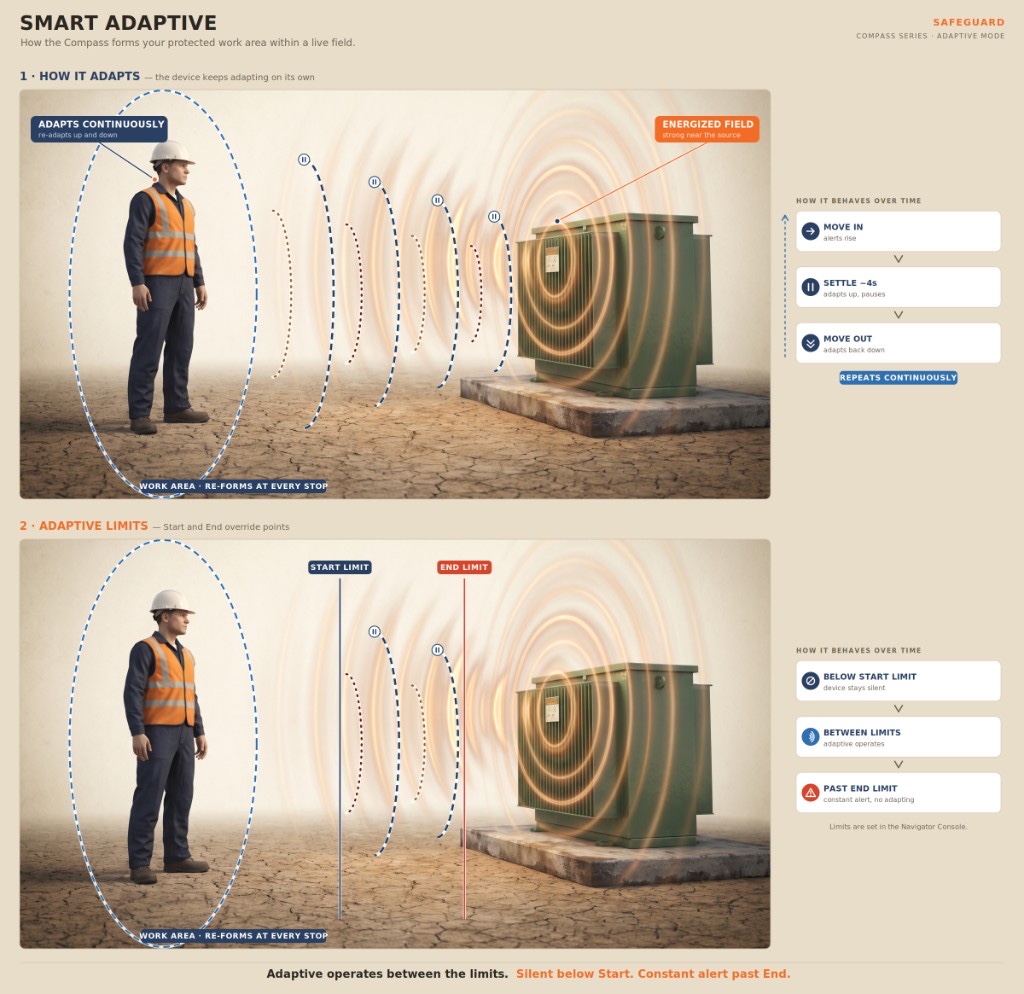
Smart Adaptive re-forms the work area at every stop. Adaptive Limits bound that behavior: silent below Start, constant alert past End.
Admins set the Start Limit and the End Limit in Navigator Console. Both adaptive modes operate only between those two points.
Policy enforced in Navigator. Not a habit enforced by hope.
Navigator comes in three tiers, good to best, and each one includes everything before it. Filter by role and platform to see what one person in that seat actually gets.
The tiers have not changed. This is what one person in that seat actually sees.
| CompareWhat each tier addsThe tiers are additive, so a checkmark carries forward to every tier on its right. Shaded cells are features that tier does not include yet. | GoodConnect4of 14 features | BetterOps9of 14 features | BestRecommendedRespond14of 14 features |
|---|---|---|---|
| Present from Connect | |||
| Live map1unlocks at OpsLive crew tracking | Connect: Present but locked | ✓Ops: Included at this tier | ✓Respond: Included at this tier |
| User ManagementAccounts and access | ✓Connect: Included at this tier | ✓Ops: Included at this tier | ✓Respond: Included at this tier |
| Device details popupSingle-device status | ✓Connect: Included at this tier | ✓Ops: Included at this tier | ✓Respond: Included at this tier |
| Subscription seats2Seat assignment | ✓Connect: Included at this tier | ✓Ops: Included at this tier | ✓Respond: Included at this tier |
| Receive emergency alertsIncoming incident alerts | ✓Connect: Included at this tier | ✓Ops: Included at this tier | ✓Respond: Included at this tier |
| Added at Ops | |||
| Manage Users3User administration | Connect: Not part of this tier | ✓Ops: Included at this tier | ✓Respond: Included at this tier |
| Create / Manage Groups4Crew grouping | Connect: Not part of this tier | ✓Ops: Included at this tier | ✓Respond: Included at this tier |
| Receive device configurationSettings on device | Connect: Not part of this tier | ✓Ops: Included at this tier | ✓Respond: Included at this tier |
| Build and assign device configuration5Device policy | Connect: Not part of this tier | ✓Ops: Included at this tier | ✓Respond: Included at this tier |
| Added at Respond | |||
| Emergency map6Incident location | Connect: Not part of this tier | Ops: Not part of this tier | ✓Respond: Included at this tier |
| Responder groups7Response teams | Connect: Not part of this tier | Ops: Not part of this tier | ✓Respond: Included at this tier |
| Build and assign response settings8Response policy | Connect: Not part of this tier | Ops: Not part of this tier | ✓Respond: Included at this tier |
| Receive response settings9Policy on device | Connect: Not part of this tier | Ops: Not part of this tier | ✓Respond: Included at this tier |
| Send an emergencyTrigger an emergency | Connect: Not part of this tier | Ops: Not part of this tier | ✓Respond: Included at this tier |
Access follows subscription and role. No pricing on this page. Your Safeguard representative has current terms.
How the adaptive modes work, what other industries learned about alarm habituation, and where this sits against ANSI/ASSP Z244.1 and NFPA 70E Annex Q. Written for the people who own the safety program.
It is in final review. Add your name and we will send it the day it publishes.
Talk to a Safeguard safety specialist about change management, and rolling this exciting update across your fleet.
Every Safe Return Home is a Promise Kept.
Tell us how many Compass Pro, Compass Pro IS, and Compass Core devices you run and how your crews are organized. A Safeguard safety specialist will walk through the update sequence, the training your crews need, and the pace that works for your season.
Prefer to contact us directly?
Email sales@safeguardequipment.com or call 208-773-9263.