Overview
Use this article when your primary coordination surface during the event is Navigator Mobile. Pair it with the deeper mobile playbook in Receive and Respond to an Emergency Event in Mobile for full step granularity.
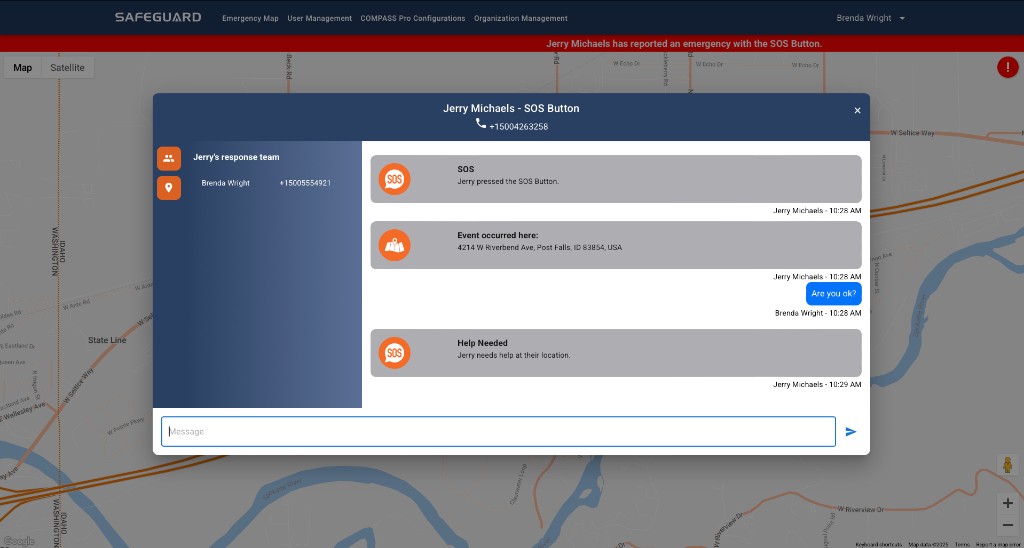
How the event reaches you
- A critical alert push notification (overrides the phone's silent feature).
- An SMS text with event details and the user's location.
- In-app emergency response chat that includes all configured responders.
- If you are wearing a Compass: corner LEDs flash ORANGE / WHITE three times with a tone, and the heartbeat is replaced by ORANGE / WHITE flashing until you open the chat.
Core sequence
- Acknowledge notifications if your playbook requires timely acknowledgment.
- Open the event and identify your responsibilities (initiator vs designated responder vs supervisor).
- Use chat features as enabled; keep instructions coherent and single-threaded when possible.
- Coordinate with Console dispatch when your organization uses dual visibility.
- Only the user who created the event can mark it as resolved. Auto-close happens after 24 hours if not resolved.