Overview
Emergency response teams translate policy into real notifications. Without correct rostering, events can look successful in tests yet fail in production.
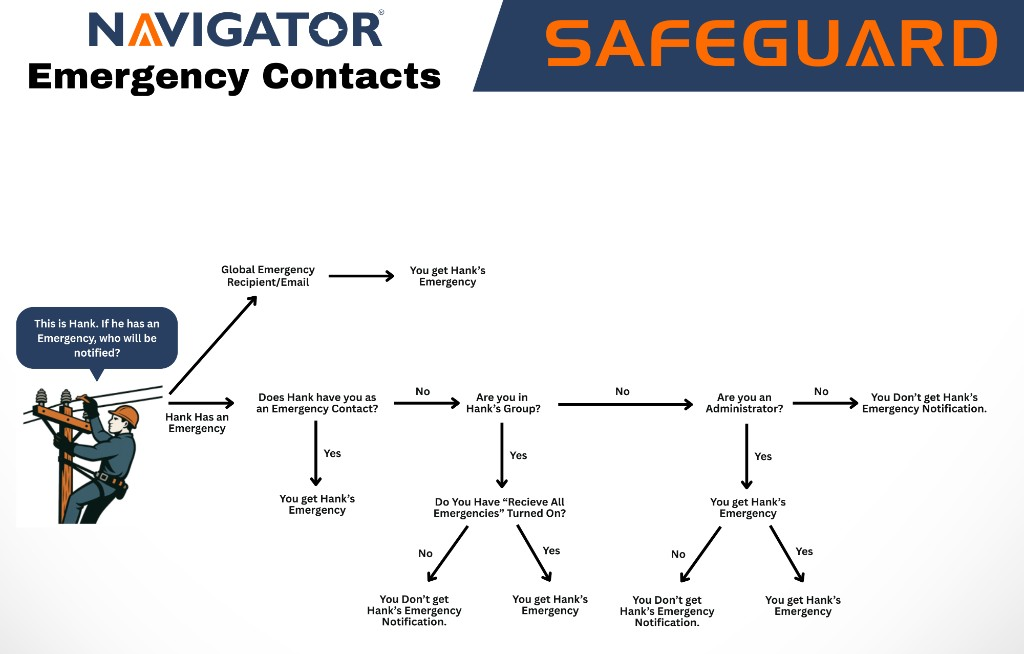
Where to add contacts
Open Navigator Mobile → Account Settings, then tap Add Contact. A new window appears that lets you build the response team for this user.
Two kinds of contact
- In-organization contacts — listed for one-tap selection. Anyone in your organization who has a Navigator subscription receives the richer experience: app push notifications plus additional SMS messages.
- External contacts — added via the + icon, with name and phone number entered manually. External contacts receive SMS messages only.
Setup pattern
- Gather responders in priority order and define backup coverage for time off.
- In Account Settings → Add Contact, add in-organization responders by tapping their entry.
- Add any external contacts (e.g. family, on-call medical) via the + icon.
- Verify each in-organization responder is provisioned with the right role and group so routing rules find them.
- Verify each phone has notification and emergency permissions granted at the OS level.
- Run supervised drills: countdown, confirm, chat (if enabled), closure, and history visibility checks.