Overview
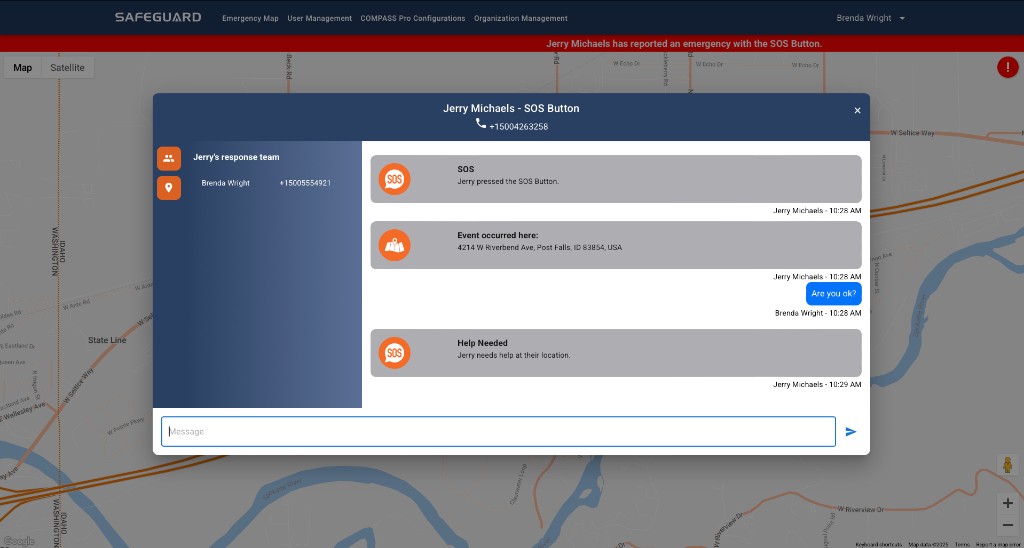
Emergency experiences in Navigator Mobile are time-sensitive. They include a 30-second countdown, sliders to confirm or cancel, an emergency response chat, and notifications across four channels for designated responders.
Subscription gating
Most emergency event features require a service subscription:
| Feature | No Subscription | Subscription |
|---|---|---|
| Compass voltage / current settings | ✓ | ✓ |
| Receive emergency event SMS messages | ✓ | ✓ |
| Detect and send emergency events | — | ✓ |
| Emergency map + chat features | — | ✓ |
| Receive emergency event notifications (in-app) | — | ✓ |
| Compass Pro configurations and administration (Console) | — | ✓ |
Countdown, CONFIRM, and CANCEL
Automatically created emergency events start a 30-second countdown. Until that countdown expires the user can:
- Expedite the event using the CONFIRM slider in the app — or by holding the SOS button on the Compass.
- Cancel the event using the CANCEL slider in the app — or by holding the MAIN button on the Compass.
What designated responders receive
- A critical alert push notification with event details and a link to the emergency response chat. Critical alerts override the phone's silent feature.
- An SMS text containing event details and the user's location.
- Access to the in-app emergency response chat with all configured responders.
- If the responder is wearing a Compass: the device flashes ORANGE / WHITE corner lights three times with a tone, and the heartbeat is replaced with ORANGE / WHITE flashing until the chat is opened.
If emergency UI never appears
Validate subscription, role, admin configuration, app version, and model support — see Why Am I Not Seeing Emergency Features?